As a JavaScript or TypeScript project grows, package.json rarely stays clean on its own. Teams add packages for quick experiments, switch libraries during refactors, inherit transitive dependencies through package hoisting, and move code around without always removing what is no longer used.
That clutter is not just cosmetic. Unused dependencies keep vulnerable packages in your install tree even after your code stops importing them. Ghost dependencies, also called phantom or unlisted dependencies, create the opposite problem: your code imports a package that is not declared in package.json, usually because it is being exposed through another dependency.
Both states make your dependency graph harder to trust. They increase CI noise, create fragile builds, and can widen your JavaScript supply chain attack surface. In this article, we’ll look at what unused and ghost dependencies are, why package managers do not fully solve the problem, and how to use Knip to find and manage them across a real project.
| Dependency issue | What it means | Why it matters | How Knip helps |
|---|---|---|---|
| Unused dependency | A package is listed in package.json but no longer used by the project |
Keeps unnecessary packages, vulnerabilities, install cost, and maintenance noise in your dependency graph | Reports dependencies that appear in package.json but are not referenced by the project |
| Ghost dependency | A package is imported in your code but not listed as a direct dependency | Creates fragile builds because the package is only available through another dependency or workspace leak | Reports unlisted dependencies that your code uses but package.json does not declare |
| Dead files or exports | Code is still present but no longer reachable from project entry points | Makes refactors harder and can hide outdated dependency usage | Reports unused files, exports, types, and duplicate exports |
| CI dependency drift | Dependency issues enter through pull requests without review | Lets dependency hygiene regress over time | Runs as a project-level lint step in CI |
What are unused dependencies?
An unused dependency is a package that remains listed in package.json even though the project no longer imports or uses it.
For example, imagine your team switches from Lodash to Radash but forgets to remove Lodash from package.json:
{
  "dependencies": {
    "lodash": "^4.17.21",
    "radash": "^12.0.0"
  }
}
If the codebase no longer imports Lodash, it is now an unused dependency. The application may still build and run, but your dependency graph is less accurate than your source code. That mismatch matters because tools, developers, and CI pipelines all use package.json as a source of truth.
Why unused dependencies are risky
Unused dependencies create several kinds of risk:
- Passive CVE exposure: If an unused package has a known vulnerability, security scanners may still flag your project because the package is present in the dependency graph. Even if the vulnerable code path is never used, the team still has to investigate it.
- Resolution conflicts: Old packages can introduce version constraints that conflict with newer dependencies. A package you forgot about can still influence the final install tree.
- Developer confusion: New contributors read
package.jsonto understand the stack. If it contains stale libraries, they may assume those packages are still approved or supported. - Install and CI overhead: Every unnecessary package increases install work, cache size, lockfile churn, and audit noise.
- Refactor drag: Old dependencies make it harder to tell which libraries are truly required and which are artifacts from previous implementations.
The security issue is not that every unused dependency is immediately exploitable. The issue is that unused dependencies expand the set of packages your team has to trust, patch, audit, and explain.
What are ghost dependencies?
A ghost dependency is a package your code imports but does not list as a direct dependency in package.json.
Here is the common path:
- Your project installs Package A directly.
- Package A depends on Package B.
- Because of dependency hoisting, Package B becomes available from your project’s
node_modulestree. - A developer imports Package B directly, even though the project never declared it.
That means your source code now relies on Package B, but your package.json does not say so.
// This import works locally because another dependency brought it in.
// But this project did not declare "package-b" in package.json.
import { helper } from 'package-b';
This build may keep passing for months. Then one day, Package A removes Package B, changes its version, or the package manager changes how it lays out dependencies. Suddenly, your app breaks even though nobody touched the import.
Ghost dependencies are also sometimes called phantom dependencies or unlisted dependencies. The names vary, but the problem is the same: your code depends on something your package manifest does not declare.
Why ghost dependencies are risky
Ghost dependencies are especially dangerous because they make your dependency graph lie.
The biggest risks are:
- Fragile builds: A build may pass on one machine and fail on another depending on lockfile state, package manager behavior, workspace configuration, or hoisting.
- Unreviewed dependencies: If the package is not listed directly, it may never go through the same review process as approved dependencies.
- Security blind spots: Teams often focus on direct dependencies during review. A ghost dependency can become an untracked part of production code.
- Hidden runtime failures: If the transitive relationship changes, imports can fail at build time or runtime. On critical routes, that can become a production outage.
- Confusing ownership: Nobody knows whether the package is intentionally part of the stack, which makes upgrades and migrations harder.
This is why dependency hygiene is not just cleanup work. It is part of software supply chain security.
Why AI agents are not enough
AI agents can help explain a dependency tree, suggest cleanup PRs, or summarize what a package does. They are not enough for dependency hygiene on their own.
Unused and ghost dependency detection requires deterministic analysis across the whole repository. A tool has to inspect entry points, imports, exports, scripts, package manifests, workspace boundaries, and framework conventions. It also has to distinguish real issues from intentional exceptions.
An AI agent can assist with interpretation, but it should not be the system of record. For this problem, you need a project-level dependency linter that can produce repeatable results in local development and CI.
Modern package managers reduce the problem but do not remove it
Package managers have improved a lot. pnpm and Yarn Plug’n’Play are stricter than classic node_modules layouts and can reduce accidental reliance on transitive dependencies. Yarn’s Plug’n’Play documentation explicitly calls out ghost dependencies as a risk created by traditional hoisting.
But switching package managers is not always realistic, especially in older monorepos or production systems with custom tooling. Even stricter package managers can have edge cases around workspaces, peer dependencies, root-level dependencies, or intentional hoisting.
The practical answer is not always “switch package managers.” Often, it is “make dependency hygiene visible.” A project-wide linting tool gives you a safer first step: find the problems, review them, and decide how strict your team wants to be.
Project-wide dependency linting with Knip
Knip is a project-level linter for JavaScript and TypeScript projects. It finds unused dependencies, unlisted dependencies, unused files, unused exports, unresolved imports, duplicate exports, and unlisted binaries.
That scope matters. ESLint is excellent for linting individual files and enforcing code-level rules. Knip works at a different level: it analyzes how the repository fits together.
Knip is especially useful because it:
- Supports monorepos and workspaces
- Understands many common JavaScript and TypeScript frameworks
- Detects unused dependencies and ghost dependencies
- Finds dead files and unused exports
- Can run locally or in CI
- Provides filters so you can audit one category at a time
Knip is not a “run one command and delete everything” tool. It is a reporting tool that helps your team make informed decisions. The goal is not automatic deletion. The goal is a dependency graph that accurately reflects how the codebase works.
How Knip works
Knip starts from configured or inferred entry files, follows imports and exports across the project, and compares what it finds against your package manifests.
More great articles from LogRocket:
At a high level, it asks:
- What files can the project actually reach?
- What imports, exports, binaries, and dependencies are referenced?
- Which entries in
package.jsonare unused? - Which imports are used but missing from
package.json? - Which files or exports appear to be dead code?
Because Knip analyzes the project as a graph, it can catch issues that file-level tools miss. That is why it is a good fit for dependency hygiene work.
Setting up Knip
You can run Knip as a one-time scan:
npx knip
Or install it as a development dependency:
npm install -D knip
Then add a script to package.json:
{
  "scripts": {
    "knip": "knip"
  }
}
Now the team can run:
npm run knip
Knip includes built-in configuration for many frameworks, but you can customize behavior with a knip.json file when needed.
Reducing noisy Knip output
On a large project, the first Knip run can be overwhelming. That is normal. Instead of trying to fix everything at once, filter the report by issue type.
# Find ghost or unlisted dependencies
npx knip --include unlisted

# Find unused dependencies
npx knip --include dependencies

# Find unused files
npx knip --include files

# Find unused exports
npx knip --include exports
For targeted cleanup, Knip also supports --fix for some issue types:
npx knip --include dependencies --fix
Use --fix carefully. Removing dependencies, files, or exports should happen on a feature branch, with tests and a manual review. A dependency can look unused to static analysis but still be referenced through dynamic imports, framework conventions, generated code, or runtime configuration.
Practical example: Auditing a real project
To show how this works in practice, let’s look at a real open source project: dub.co. The goal is not to criticize the project, but to show how Knip reports dependency hygiene issues in a non-trivial codebase.
A good audit order is:
- Ghost dependencies
- Unused dependencies
- Unused files
- Unused exports
Start with ghost dependencies because they are usually the highest-risk category. If production code imports a package that is not declared, you want to know early.
npx knip --include unlisted
Here’s a glimpse of how Knip reports ghost dependencies:
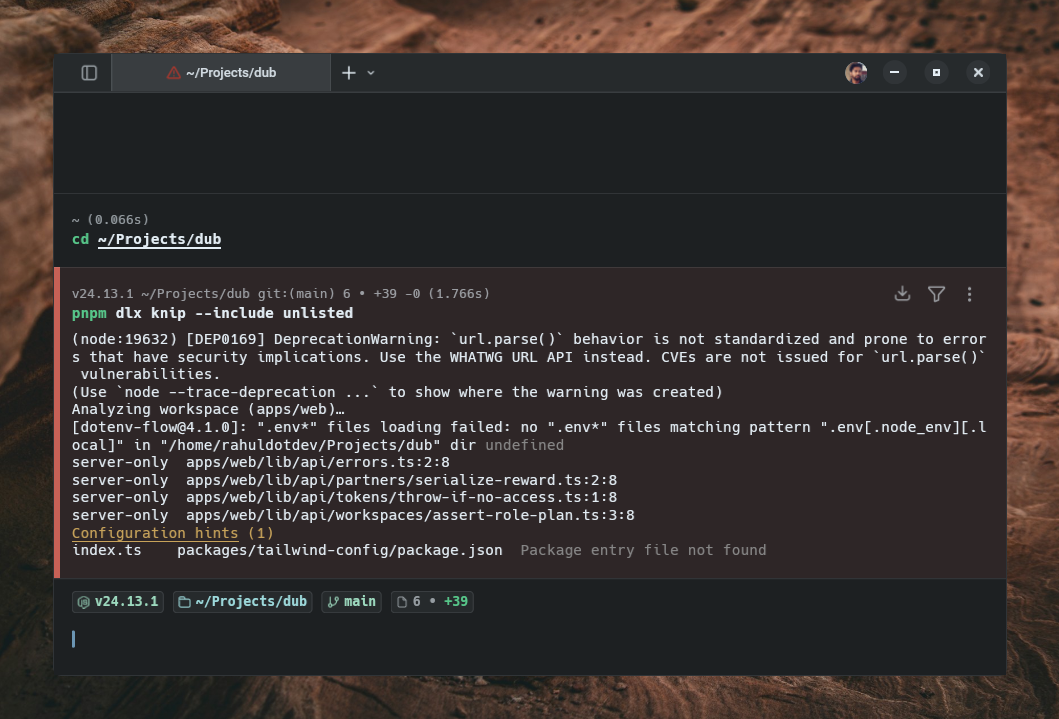
Knip reported that server-only was imported from several files but was not listed in package.json. It also flagged a missing package entry file.
That does not automatically mean the project is broken. It means the dependency graph needs review. In a real codebase, the next step is to determine whether the import is:
- A true ghost dependency that should be installed and declared
- A framework-specific virtual module or shim
- A false positive that should be ignored in Knip configuration
- A workspace boundary issue where a package relies on a root-level dependency
That distinction is important. Knip gives you the signal. Your team still has to apply project context.
Handling false positives
Not every Knip warning means “delete this” or “install this.” Some warnings are intentional.
For example, a framework may use a special import, shim, or type declaration that looks like a package dependency but is not meant to be installed directly. In that case, you can tell Knip to ignore the dependency:
// knip.json
{
  "ignoreDependencies": [
    "server-only"
  ]
}
Use ignore rules sparingly. Every exception should have a clear reason. If a future developer sees ignoreDependencies, they should understand whether it exists because of a framework convention, generated code, a virtual module, or a known Knip limitation.
A useful pattern is to add a short comment near the configuration in the PR description or internal docs explaining why the exception exists.
Using Knip production mode
Knip’s production mode does not mean “run Knip in production.” It means “focus the analysis on code and dependencies that matter for production.”
Run:
npx knip --production
This helps reduce development-only noise from tests, Storybook files, local scripts, and build tooling. It is especially useful when your first Knip report is too large to act on.
For stricter production checks, you can also use production mode with strict checks:
npx knip --production --strict
A practical workflow is:
- Run regular Knip locally while cleaning up the project.
- Use filtered checks for targeted reviews.
- Add production-focused checks to CI once the baseline is clean enough.
Automating Knip in CI/CD
Knip is most valuable when it becomes part of your dependency hygiene workflow, not a one-time cleanup exercise.
A good CI strategy is to run Knip after dependency installation and before expensive test suites. That way, obvious dependency hygiene issues fail fast.
For a GitHub Actions setup, you can add a workflow like this:
# .github/workflows/knip.yml
name: Dependency audit

on:
  push:
    branches: [main, master]
  pull_request:

jobs:
  knip:
    runs-on: ubuntu-latest

    steps:
      - name: Checkout code
        uses: actions/checkout@v4

      - name: Setup Node.js
        uses: actions/setup-node@v4
        with:
          node-version: '20'
          cache: 'npm'

      - name: Install dependencies
        run: npm ci

      - name: Run Knip audit
        run: npx knip --include dependencies,unlisted
Controlling severity in CI
You probably do not want every Knip issue to block a pull request on day one. A cleaner rollout is to treat ghost dependencies as stricter than unused dependencies.
For example:
jobs:
  knip:
    runs-on: ubuntu-latest
    steps:
      # Previous steps...

      - name: Strict check for ghost dependencies
        run: npx knip --include unlisted

      - name: Warn on unused dependencies
        run: npx knip --include dependencies --no-exit-code
By default, Knip exits with a non-zero code when it finds issues. That is useful for strict checks. For advisory checks, --no-exit-code lets CI report the issue without failing the pipeline.
This gives you a gradual adoption path:
- Fail CI on ghost dependencies
- Warn on unused dependencies
- Create follow-up cleanup tickets for large reports
- Tighten rules once the baseline is stable
Best practices for dependency hygiene
Knip works best when it is part of a broader dependency hygiene process.
Use this checklist:
- Review new dependencies before installing them. Ask whether native APIs or existing packages already solve the problem.
- Treat
package.jsonas an architectural document. It should show what the project intentionally depends on. - Run Knip before major refactors. Dead files and stale dependencies make refactors harder.
- Run Knip after major refactors. Cleanup often leaves behind unused packages, exports, or files.
- Fail CI on ghost dependencies. If production code imports a package, it should be declared directly.
- Use warnings before strict enforcement for unused dependencies. Large projects need a cleanup period.
- Document ignore rules. Every exception should have a reason.
- Pair Knip with dependency scanners. Knip tells you what you use. Security scanners tell you whether known packages are vulnerable.
The goal is not a perfectly empty report at all times. The goal is to make dependency drift visible before it becomes a production or security problem.
Conclusion
Unused and ghost dependencies are easy to ignore because they rarely fail loudly at first. An unused package can sit in package.json for years, adding audit noise and maintenance cost. A ghost dependency can work fine locally until a transitive dependency changes and the build suddenly breaks.
Knip gives you a practical way to find both problems. It analyzes the project as a whole, compares real usage against your package manifests, and surfaces the places where your dependency graph no longer matches your code.
The safest workflow is incremental. Start by running Knip locally, then filter the report into smaller categories. Review ghost dependencies first, because production code should not rely on undeclared packages. Add ignore rules only when you understand the exception. Once the baseline is manageable, put Knip in CI so new dependency drift gets caught before it reaches main.
Cleaner dependency graphs reduce attack surface, improve build reliability, and make your codebase easier to understand. The smaller and more accurate your package.json is, the less your team has to trust by accident. If you are working in a Next.js environment, pairing these dependency hygiene practices with Next.js security headers can further harden your application against supply chain and runtime threats.